Virtual Desktops (VDI)
Virtual desktops should be easy to consume for end users and predictable to operate for administrators. whitesky VDI delivers centrally managed Windows desktops today, with Linux desktops on the roadmap, without requiring end users to deploy or manage virtual machines themselves.
In short: whitesky VDI delivers centrally managed Windows virtual desktops with role-based access through VDI profiles. Users connect via agent (WireGuard VPN) or Remote Desktop Gateway, with single-use or dedicated desktop modes for different use cases.
Access to desktops is driven by policies, roles, and profiles — not by manual VM provisioning.
What whitesky VDI delivers (business overview)
Instant access to managed desktops
End users receive access to a fully configured desktop environment simply by starting a session. No virtual machines need to be deployed or managed by the user.
Role-based desktop delivery
Different user groups — such as students, administrative staff, developers, or contractors — can each receive a desktop tailored to their needs, based on role assignments.
Cost and capacity control
Administrators define how many desktops are always ready, how many can be created in total, and how long unused desktops remain available. This ensures predictable costs and controlled resource usage.
Secure access from anywhere
Users connect securely to their desktops using either a lightweight agent or a standard Remote Desktop Gateway, depending on organizational preferences and security requirements.
Core concept: the VDI profile
A VDI profile is the central configuration object that defines how virtual desktops are created, managed, and accessed.
A profile brings together:
- where desktops are created
- how they are configured
- how users connect
- who is allowed to use them
Once a VDI profile is created, desktops are provisioned automatically according to its settings.
VDI profile configuration
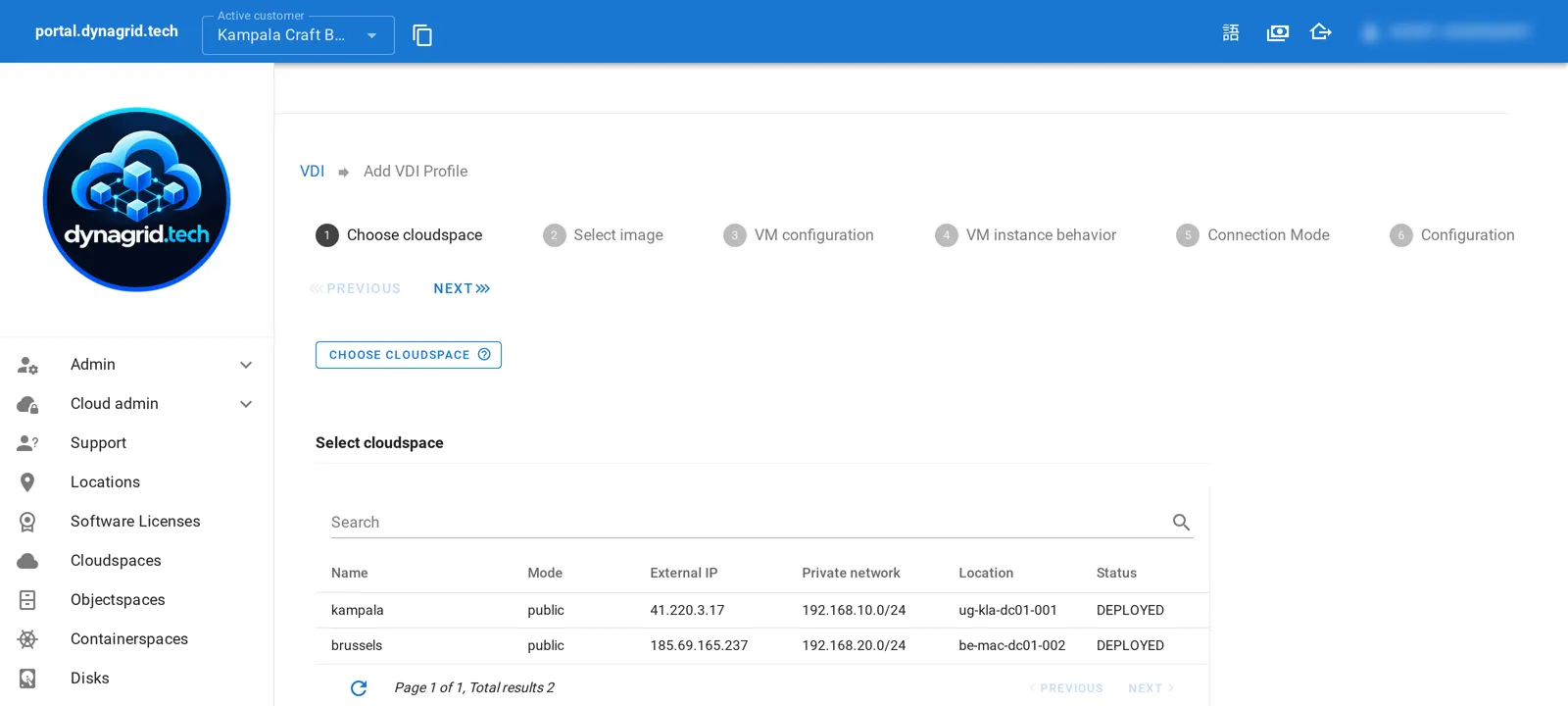
1) Cloudspace selection
The administrator selects the cloudspace where all virtual machines for this VDI profile will be created.
This determines:
- network connectivity
- access to backup targets
- proximity to users or applications
All desktops belonging to the profile live inside this cloudspace.
2) Image selection
Before a VDI profile can be used, an image must be prepared.
This image contains:
- the operating system (Windows today; Linux desktops are on the roadmap)
- required applications
- domain or directory integration
For Windows desktops, images are typically integrated into an Active Directory domain. For Linux desktops, once available, integration will be done using LDAP or similar directory services.
This ensures users can authenticate to their desktop sessions using their existing credentials.
3) Resource sizing
The administrator defines the hardware profile for desktops created by the VDI profile:
- number of vCPUs
- amount of memory
- boot disk size
- optional GPU attachment, where the cloud location offers GPUs
- optional backup policy assignment
These settings ensure desktops are right-sized for their intended workload.
4) VM instance behavior
whitesky VDI supports two distinct desktop lifecycle models.
Single-use mode
In single-use mode:
- a desktop is created for a session
- once the session ends, the VM is eventually deleted
The administrator defines a recycle time:
- during this time window, a user can reconnect to the same session
- this protects against brief network interruptions
After the recycle time expires, the VM is removed automatically.
This mode is ideal for:
- exam environments
- training sessions
- shared or temporary workspaces
Dedicated mode
In dedicated mode:
- each user is permanently associated with a specific VM
- returning users always reconnect to the same desktop
Two sub-modes are available:
- Standby: the VM remains running when the session ends, enabling instant reconnection
- Shutdown: the VM is powered off when the session ends and restarted when the user reconnects
This mode is ideal for:
- knowledge workers
- administrative staff
- users with persistent state
5) Connection modes
whitesky VDI supports two connection methods.
Agent-based connection
In agent mode, the user installs the whitesky VDI agent on their device. Agents are available for:
- Windows
- Linux
- macOS
- Raspberry Pi
The agent:
- establishes secure networking automatically
- sets up a WireGuard VPN tunnel under the hood
- connects directly to the desktop over RDP
This approach provides strong security and avoids exposing desktops directly to the internet.
Remote Desktop Gateway connection
In gateway mode:
- the customer deploys a Microsoft Remote Desktop Gateway
- users connect through the gateway to reach their desktops
In this mode:
- no agent installation is required on the user device
- access happens using standard RDP clients
This option is suitable when agent installation is not allowed or feasible.
6) Capacity and limits
Each VDI profile defines:
- a standby pool size: the number of desktops that are always pre-created and ready
- a maximum VM count: the upper limit of desktops the profile may create
This allows administrators to:
- ensure fast session start times
- enforce cost and capacity limits
When a profile is created, the standby pool desktops are provisioned immediately.
7) Security and access control
Administrators configure:
- the service account used by the VDI system
- which user roles are allowed to access the profile
Access to the VDI profile page is protected by the identity and access management system of the Virtual Cloud Operator portal.
Identity integration and role mapping
whitesky VDI integrates with external identity providers using OpenID Connect.
This allows:
- mapping group membership from systems like Microsoft Entra ID (Office 365), Google Workspace, or other OIDC providers
- translating those groups into whitesky roles
- controlling which users can access which VDI profiles
This makes it easy to align desktop access with existing organizational identity structures.
User experience flow
- Administrator creates a VDI profile
- Standby pool desktops are provisioned automatically
- User navigates to the VDI profile page in the portal
- User authenticates via the integrated identity provider
- User starts a desktop session
- Connection is established via agent or gateway
- Desktop lifecycle follows the configured behavior (single-use or dedicated)
From the user’s perspective, starting a desktop feels like launching an application — not managing infrastructure.
Why customers choose whitesky VDI
- No manual VM provisioning for end users
- Centralized control with role-based access
- Secure connectivity by design
- Flexible lifecycle models for different use cases
- Predictable cost control through pool sizing and limits
- Tight integration with the broader whitesky platform
whitesky VDI turns virtual desktops from an operational burden into a managed service.