Backup & DR
Backup & Disaster Recovery
In short: whitesky includes built-in backup and restore with patent-pending block-level incremental backups stored in S3-compatible storage. Configure policies once and backups run automatically—full VM restore or file-level recovery via CLI.
Data loss rarely comes from a single “big disaster”. It’s usually something small and human: a deleted file, a broken update, ransomware, or a misconfiguration. whitesky includes built-in backup and restore so teams can protect workloads by default, and recover quickly when something goes wrong.
This page starts with the outcome in business terms, then goes deeper into how the technology works and how technical teams can operate restores—down to individual file recovery.
What you get (business overview)
Backups that are configured once, then run automatically
Backups are driven by backup policies. When a virtual machine is created, the user can immediately select one or more backup policies. From that moment on, backups start automatically—no extra tooling required.
Flexible backup storage: your S3, your rules
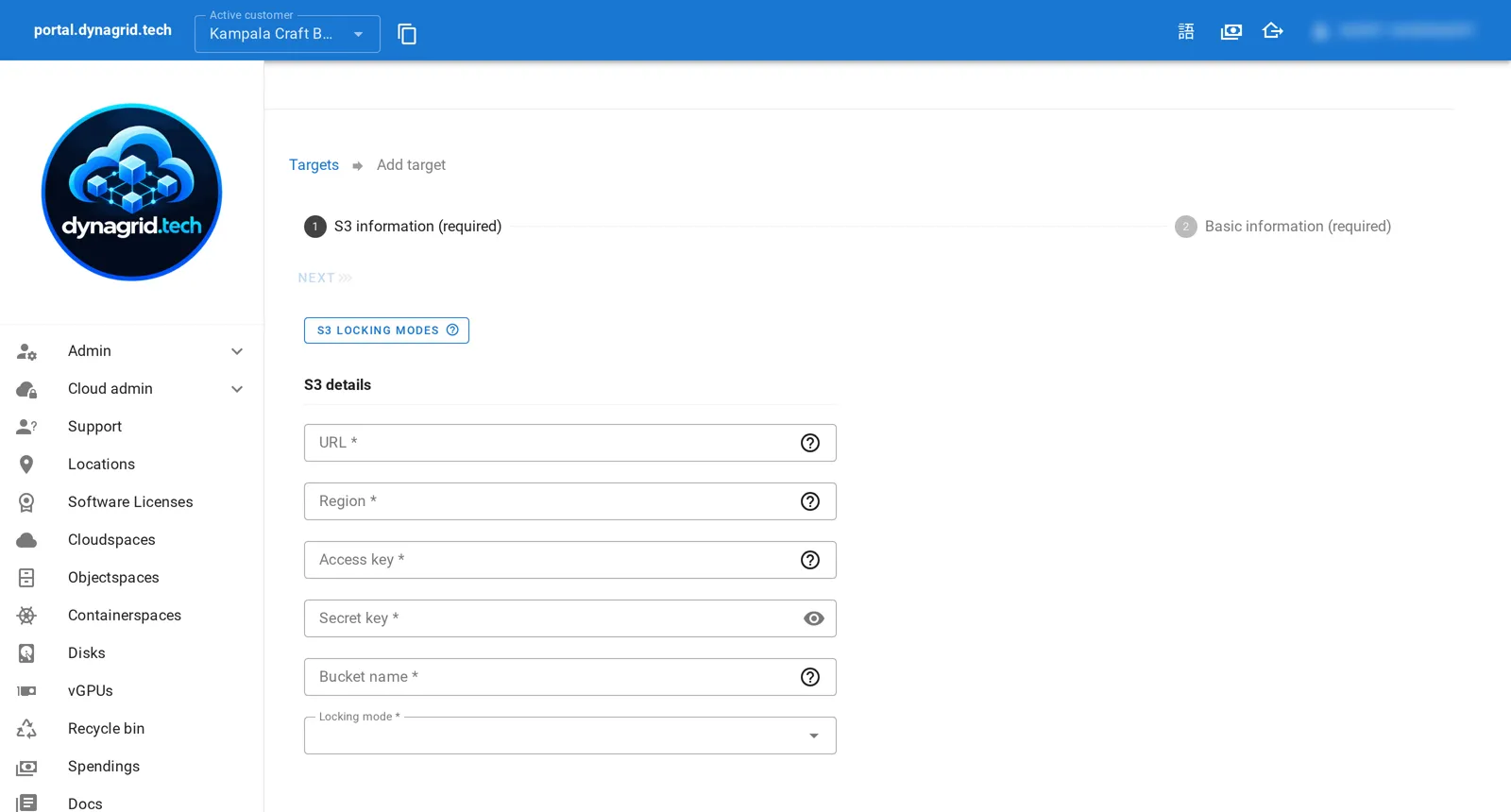
Backups are stored in backup targets, which are simply S3-compatible buckets. A backup target can be:
- whitesky objectspaces (S3-compatible storage inside the platform)
- an on-premises S3 system
- any other S3-compatible storage reachable from the environment
Per backup target you choose no locking, or one of the two mainstream S3 object-locking modes (governance or compliance). With S3 object locking, backups cannot be altered or deleted through the whitesky or S3 APIs.
This design allows very private scenarios: for example, a repository that is only accessible on-premises, behind a VPN, or through controlled network paths.
Confidence through notifications
If backups fail, the right people are notified by email based on policy and responsibility. This reduces the “silent failure” risk and helps teams stay in control without constant manual checking.
Restore for full VM recovery—and for “just one file”
You can restore complete virtual machines from backup through the portal workflow. And for cases where you only need a specific file, the CLI supports mounting a backup so you can extract individual files without restoring the entire VM.
Key concepts
Backup target
A backup target is an S3 bucket used to store backup data.
Important detail: A backup target does not inherently “belong” to a specific cloud location. Instead, locations are connected to the backup target through a subscription (see below).
Backup policy
A backup policy defines:
- how frequently backups are taken
- how long backups are retained
A VM can be protected by multiple backup policies at the same time (for example, a frequent short-retention policy plus a slower long-retention policy).
Subscription model (how locations connect to targets)
To use a backup target in a cloud location, the location must be subscribed to that target. Subscribing is done by selecting a cloudspace that has network connectivity to the S3 endpoint of the backup target.
This is a deliberate design choice:
- It enables use of backup repositories that are only reachable through private networking (VPN, on-prem, restricted access).
- It makes backups usable across different locations without coupling the repository definition to a single site.
Backup workflows
1) “Protect from day one” during VM creation
When a user creates a virtual machine in the portal, they can immediately select the backup policy or policies that should apply. As soon as the VM exists, the backup policies start taking effect automatically.
If something goes wrong with backup execution, the platform sends an email notification so teams can react early.
2) Apply policies to existing virtual machines
Existing virtual machines can be configured with backup policies at any time. Once attached, the policies start applying from that point forward.
Restore workflows
Full VM restore (“create new VM from backup”)
Restore in whitesky is performed by creating a new virtual machine from a backup.
High-level steps:
- Ensure the backup target is connected to the location where you want to restore.
- If needed, subscribe the target via a cloudspace that can reach the target’s S3 endpoint.
- Start the restore workflow in the portal.
- Select the VM(s) you want to restore.
- Choose the specific backup snapshot to use for each VM.
- Launch the restore.
During restore, the workflow provides an indication of expected duration until the VM is fully restored and ready.
File-level recovery (CLI mount approach)
A full VM restore can be heavy when you only need one file. For that scenario, whitesky extends the CLI that ships with the Virtual Cloud Operator portal so you can mount a backup.
Conceptually:
- You mount a backup for a given VM and snapshot.
- The mount exposes the VM’s block device(s) as raw disk images in a directory.
- You can then use standard Linux tooling to access partitions and mount filesystems to retrieve files.
Typical procedure (example on Linux):
- Mount the backup using the whitesky CLI (command depends on your CLI; follow your CLI help).
- In the mounted directory, identify the raw disk file(s) representing the VM disks.
- Use loopback to expose partitions:
- losetup –find –partscan /dev/loopX
- or: losetup -Pf
- losetup –find –partscan /dev/loopX
- List partitions (e.g., lsblk) and mount the needed partition to a local directory.
- Copy out the file(s) you need.
- Unmount and detach the loop device, then unmount the backup.
This approach enables fast, targeted recovery without waiting for a full VM restore.
How the backup technology works (technical deep dive)
whitesky backups are designed to be fast and efficient for large virtual machines.
Patent pending: the backup technology described below is whitesky’s own; whitesky has applied for a European patent on it.
Block-level change detection + incremental backup efficiency
The platform includes the ability to determine which sectors on a VM block device have changed between two block snapshots.
Instead of reading and backing up the entire block device every time, whitesky:
- Creates block snapshots.
- Determines which block ranges (sectors) changed between snapshots.
- Feeds this change map into a FUSE filesystem that represents the block device as a directory of files.
In that FUSE filesystem:
- Each file represents a portion of the block device.
- The “last modified” timestamps reflect which portions have changed.
Then whitesky uses established filesystem backup technology (restic) to back up this directory view. Because only the “modified” portions appear as changed files, the backup system reads and stores only the changed regions.
Result:
- Large virtual machines can be backed up in minutes.
- Incremental backups are efficient because only changed parts are processed.
- Backups remain compatible with S3 storage targets.
Control and enforcement (operator model)
Backup rules can be enforced at multiple levels:
- The Cloud Enabler level can define whether VMs must be backed up and which repositories are allowed/required.
- The Virtual Cloud Operator level can define the same at its own level.
This allows MSPs and operators to standardize protection policies and ensure workloads are always safeguarded according to their operating model.
Recommended best practices
- Use separate backup targets per environment or customer when isolation requirements apply.
- For private repositories (on-prem/VPN), subscribe via a cloudspace with controlled connectivity.
- Periodically test restores (both full VM restore and file-level recovery) as part of operational hygiene.